
How to Convert PDF to Word
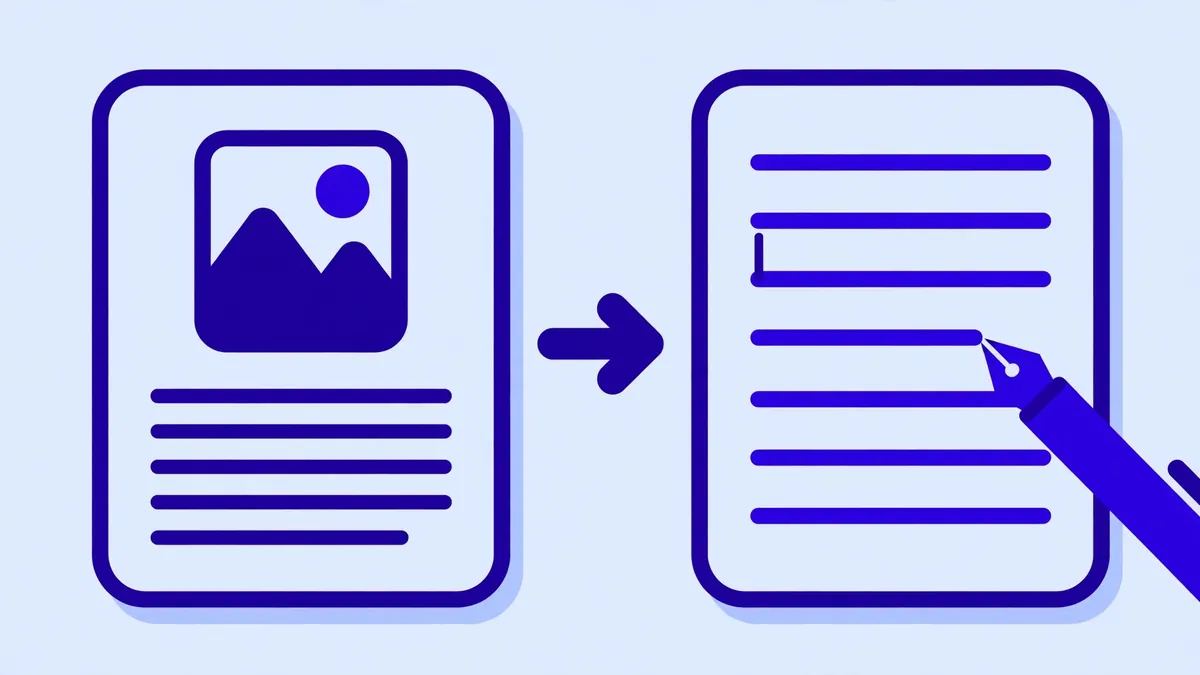
To convert PDF to Word on this site, open the PDF converter, add your file, choose DOCX as the output and start the conversion. You get back a Word document whose text you can edit, as long as the PDF held real text in the first place. This guide walks through the steps and explains the one distinction that decides the result: a PDF made from a document behaves very differently from a PDF made by a scanner.
People usually land here with a finished document that is not finished after all. A contract needs a clause changed, a report needs its figures updated, and the only copy anyone kept is the PDF.
Why a PDF has to become a Word file again
A PDF is a delivery format. It freezes a document so the pages look the same on every screen and every printer, and that freezing is exactly what you want right up to the moment the work starts again. When the work starts again, the freezing turns into the problem. You cannot retype a paragraph inside a frozen page without starting from a picture of it.
Converting the PDF to DOCX hands the document back as a draft. The text returns as paragraphs and headings in a file Word can open, ready to change, restyle and send on. The conversion runs through LibreOffice on the connected service, which reads the PDF and writes a real document in the format you picked. The document converter on this site accepts 21 document formats and runs the same engine for all of them.
How to convert PDF to Word on this site
Four steps, all in the browser.
- Open the PDF converter. It takes files up to 100 MB each, and the queue holds up to 20 PDFs at a time.
- Add your PDF. Drag it onto the box or choose it from your device. The file appears as a row with its name and size, so you can check you picked the right one.
- Choose DOCX as the output on the row. DOCX is the Word format, and it is the choice that gives you editable text back. The selector also offers JPG and PNG for page pictures and TXT for the words alone, which suit other jobs.
- Press Convert and follow the progress on the row. Download the DOCX when it finishes, or download a whole queue together as a single ZIP file.
Keep the original PDF until you have opened the DOCX and read it through. A converted file is a new document, not the same pages in a new coat, and the PDF is the copy that still shows the layout exactly as it was sent. The service deletes uploads and results one hour after a conversion finishes, so download inside that hour.
What survives the trip, and what can shift
A PDF that was made from a document, exported from Word or a similar app, holds real text under the page surface. That text comes back well. Paragraphs return as paragraphs, headings return as headings, and the words are yours to edit from the first minute.
Layout is less certain than text. A table built from lines and spacing can arrive with its columns nudged, and a page with text wrapped around pictures can rearrange itself. The preview beside the converter shows the converted file next to the original, so a shifted table shows up before you download. Expect to spend a few minutes tidying a complex document after conversion, and none at all on a plain one.
The scanned PDF is a different case
A scanned PDF holds no text at all. Each page is a photograph of a page, taken by the scanner. The converter carries those photographs into the DOCX as they are, and the result looks correct on screen. You still cannot type in it, because the file holds no words for Word to edit, only pictures of words. This conversion does not read text out of scans, and no setting on the page changes that.
The other outputs on the same row
DOCX is the output this guide follows, but the same row offers others. JPG and PNG turn every page into a picture, in page order, with a quality and a width setting on the row. TXT pulls the words out of the pages and leaves the layout behind, which suits search tools and anything that reads plain text. Every output runs through the same engine, and every output meets the same scan limit: a page the PDF holds as a picture stays a picture wherever it lands.
What the conversion cannot do
It cannot make a scan editable, for the reason above. If your only copy is a scan and the text has to change, the practical routes are to retype the parts you need, or to go back to whoever produced the document and ask for the original file it was made from.
It cannot open a protected PDF. A file that asks for a password stops at the door, because the service cannot open it to read the pages. Remove the protection in your PDF app first if you know the password, and then convert.
And it does not edit the PDF itself. Merging two PDFs, splitting one, rotating pages or protecting a file are jobs on the PDF as a PDF, and they live on the PDF tools page. This guide is about changing the format, which is a different job.
Working in the Word file afterwards
Read the DOCX once through before you edit it, with the PDF open beside it if the document matters. Check the tables, the headings and any page where text wrapped around a picture. Those are the places a conversion shows its seams.
From there the file is an ordinary Word document. The DOCX converter covers the format itself when the edited document needs to travel onward, to PDF for sending or ODT for an open office suite. And when the next finished document needs reopening, the PDF converter and this same routine will be waiting.
Frequently Asked Questions
Will the Word document be editable?
If the PDF was made from a document, its text comes back in the DOCX as paragraphs and headings you can change and restyle. If the PDF is a scan, the file holds pictures of pages rather than text, and the DOCX carries those pictures. The words stay inside them, locked as part of the image.
Can the converter read the text out of a scanned PDF?
A scanned PDF holds a picture of each page, and this conversion does not read text out of scans. The DOCX you download carries the page pictures as they are, so the document looks right on screen, and you still cannot type in it.
How large can the PDF be, and how many can I convert?
Each PDF can be up to 100 MB, and the queue holds up to 20 files at a time. Every file keeps its own output choice. Download the results one by one or together in a single ZIP file, and do it inside an hour, because the service deletes uploads and results one hour after a conversion finishes.
My PDF asks for a password. Can it still be converted?
The service cannot open a protected PDF, so the conversion stops before it starts. If you know the password, remove the protection in your PDF app first, then add the file again.